
Testing
Introducer SupplierWhen instructions are received by the team at The Moving Portal, they will go through some due diligence checks and then progress the case. Once assigned to a supplier a case will be progressed by them to completion.
For introducer:
- For direct referrals and some quotes: Accept/Confirm or Reject the case
- Take payment - usually to mark the case as ordered
- Assign the case to a supplier
- Deallocate a case from a supplier
- Book (and rebook) an appointment (usually performed by supplier)
- Cancel appointment
- Change product
- Complete case (usually performed by supplier)
- Cancel case
- Put case on hold or take off hold
- Change customers or property details
- Add a note
- Fee change
- Uncancel (for a referral only)
For supplier:
- Create and assign a case to them
- Deallocate a case from a supplier
- Cancel appointment
- Change product
- Cancel case
- Put case on hold or take off hold
- Change customers or property details
- Add a note
- Fee change
We have created interactive functionality to allow for an integrator to be able to perform the majority of these operations. This will be available in the testing environment only.
Integration Developer Console
This functionality is available in the TMP portal for Introducers and Suppliers and IMH portal for Suppliers. It provides the ability to load an Instruction and perform the admin operations on that instruction.
Only available in the TESTING environment.
The Url's are
- https://testing.themovingportal.dev/integration/developerconsole
- https://imyhome.themovingportal.dev/integration/developerconsole
You should use you portal credentials to access the site.
You can also navigate to the site once logged in via:
- Administration menu option
- Integration option (on the same page to manage portal credentials)
Introducer
Supplier
- Integration Console (option top right, or under API Resources)
Introducer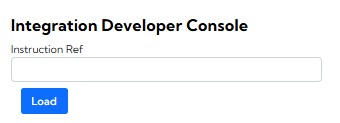
Supplier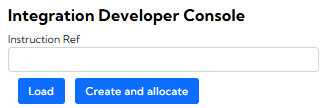
To use the console you should:
- Enter the Instruction reference you are interested in (using TMP format) and click Load.
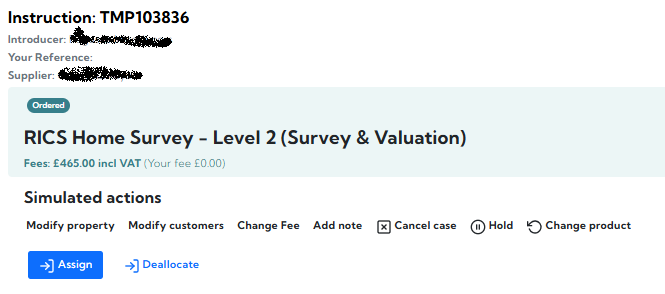
- For Suppliers there will be an option to create a test case (as well as loading a case). This instruction will be allocated to you (ready to be accepted).
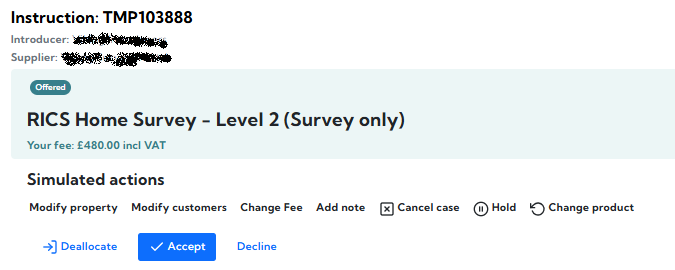
- The instruction will be loaded and you will see a summary of the instruction along with a list of possible simulated actions you can take.
- The main action (for the happy path) is normally in a button with a blue background, e.g. for an Introducer a direct referral it will be "TMP Accept case" and their is another option "TMP Reject case" (but with a white background)
- There will be other options that are also available, e.g. modify property, customers, change fee, add note etc
Clicking on these options will perform the action required.
Limited functionality
This is not a fully functioning admin system - it will not ask you questions to get full details of what you want to do. For example, clicking on
- Cancel case, Rebook appointment, Change product, TmP Reject case (or other method requring a reason) will set a known value for the reason
- Change Fee will add £1 to the fee
- Set appointment date one day in the fture
- Add note will add a note with preset text (but has the date)
- Upload file will create a dummy (valid) file
The aim of this is to perform the operation which will update the instruction (as well as creating notifications).
Introducer Happy path
The introducer should create their own cases, e.g. in the portal via a Quote which is referred or via the API (to create a Quote and refer it or create a direct referral).
The happy path is
- TMP Accept case (if it is a direct referral and some quotes)
- Assign a case to a supplier
- Book appointment
- Upload report
Supplier Happy path
Use the Integration Development Console to create a case which is allocated to you.
The happy path once a case is created is
- Accept the case
- Book appointment
- Upload report