
Supplier operations service
SupplierAn instruction for a supplier works through the following stages (with OPERATIONS performed by the supplier in bold):
- Case is assigned to a supplier (by TMP).
- The supplier can then ACCEPT or DECLINE the case.
- If the supplier accepts they will then BOOKAPPOINTMENT.
- They can then REBOOKAPPOINTMENT.
- Once the appointment has been completed the supplier will CONFIRMAPPOINTMENTCOMPLETED
- Or CONFIRMAPPOINTMENTUNCOMPLETED, i.e. did not take place. This will cancel the appointment and move the instruction back.
- After the appointment the supplier can UPLOADREPORT (which will complete the case).
- It may be possible to REPLACEREPORT once a case has been completed.
- In some scenarios it is possible to COMPLETE the case without uploading.
Confirmation of appointment functionality has not yet been enabled
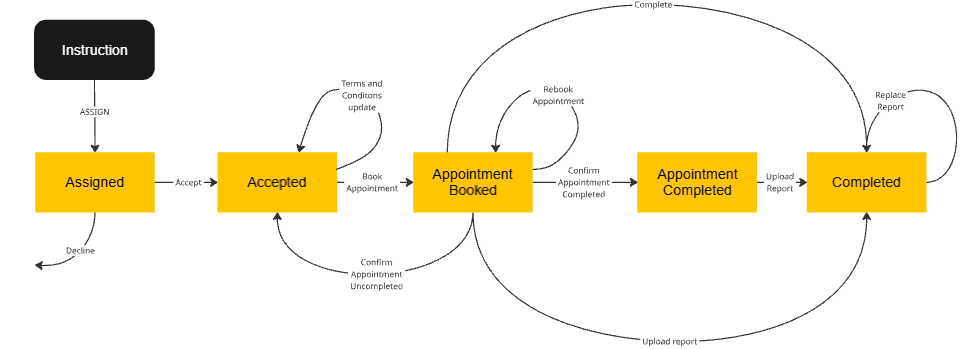
When you retrieve an Instruction it will inform you of the allowed operations, with the codes below and relavant method in this API:
- ACCEPT PUT
/instruction/{tmpReference}/accept - DECLINE PUT
/instruction/{tmpReference}/decline - BOOKAPPOINTMENT POST
/instruction/{tmpReference}/appointment - REBOOKAPPOINTMENT PATCH
/instruction/{tmpReference}/appointment - CONFIRMAPPOINTMENTCOMPLETED PUT
/instruction/{tmpReference}/appointmentcompleted - CONFIRMAPPOINTMENTUNCOMPLETED PUT
/instruction/{tmpReference}/appointmentuncompleted - UPLOADREPORT POST
/instruction/{tmpReference}/report - REPLACEREPORT PATCH
/instruction/{tmpReference}/report - COMPLETE PUT
/instruction/{tmpReference}/complete
Accept case
PUT/instruction/{tmpReference}/acceptOnce an instruction has been assigned it needs to either be accepted or decline.
To accept the case you need to provide confirmation of the fee (inclusive of VAT) that it has been offered at.
{
  "yourFeeInclVAT": 250.00
}
Validation
- The case needs to be at a status that it can be accepted (i.e. Assigned).
- The fee
yourFeeInclVATmatches the value that it was offered at.
Decline case
PUT/instruction/{tmpReference}/declineOnce an instruction has been assigned it needs to either be accepted or decline. To decline a case you need to provide a reason why it has been declined. The list of reasons can be found in the dataset DECLINECASEREASONS.
{
  "reasonCode": "NOCOVERAGE",
  "otherReason": ""
}
See Reasons for more information about determining codes and using reasons.
Validation
- The case needs to be at a status that it can be accepted (i.e. Assigned).
- The reason code was recognised.
- If the reason code requires an
otherReasonit has been provided and is no more than the maximum length allowed for OTHER.
Terms and conditions
PUT/instruction/{tmpReference}/termsOnce an instruction has been accepted it will need an appointment booked. However, the appointment should not be booked until the Terms and Conditions have been sent and agreed to. This method can be used to update the status of the terms and conditions.
Optional method
It is not a requirement to use this method - you can skip updating the terms and conditions status.
However, the TMP service team will chase instructions where appointments that haven't been booked and ascertain the current status. If you update the status when terms are sent this could trigger automatic communication with the customer and allow the TMP service team to follow up with the customer directly.
Our expectation is that you will use this method when there is a delay in getting terms and conditions sent or returned. Our preference is that you use this at all times.
{
  "termsSent": true,
  "sentTimestamp": "2024-06-04Z",
  "termsReceived": false,
  "receivedTimestamp": null
}
When this is sent the following may happen:
- If
termsSentis set (but nottermsReceived) then if possible, the customer will receive communication about this (e.g. by email or SMS). - The
otherInformationof the Instruction, Instruction search and Instruction events entities will have details set. See these services for more information.
Validation
- The case needs to be at a the ACCEPTED status.
- Either
termsSentortermsReceivedmust be true or both can be true. Both cannot be false. - If
sentTimestampis set thentermsSentmust be true. - If
receivedTimestampis set thentermsReceivedmust be true. - The timestamps must be the current date or in the past.
Book appointment
POST /instruction/{tmpReference}/appointmentOnce an instruction has been accepted it needs to have an appointment booked.
{
  "appointmentDate": "2024-06-04T03:00:00.048Z",
  "appointmentTimeslotCode": "MORNING",
  "supplierConfirmedTermsAndConditionsAgreed": true
}
Validation
- The case needs to be at a status that it can have an appointment booked.
- If required, the timeslot code is correct.
- The appointment date is no more than six months in advance.
- If required, the terms and conditions have been agreed with the customer.
Configuration
Depending on introducer, supplier or product there may be some configuration which will change the validation requirements:
- Timeslot code may not be required - see CollectAppointmentTime.
- Terms and conditions may not be required to be agreed in order for an appointment to be booked - see SupplierToConfirmTermAndConditionsOnBookingAppointment..
Rebook appointment
PATCH/instruction/{tmpReference}/appointmentOnce an appointment has been booked it is possible to rebook the appointment by calling this method. The list of reasons can be found in the dataset REBOOKAPPOINTMENTREASONS.
- It cannot be called once the appointment has been confirmed completed.
- It cannot be called once the appointment has been confirmed uncompleted. In this case when marking the appointment as uncompleted, the appointment will be cancelled and you will need to make a new booking (calling the POST method).
- It cannot be called once you complete the case - by calling complete or uploading a document.
The payload is similar to that of booking appointment, but with the addition of reasons.
{
  "reasonCode": "CLIENTREQUESTED",
  "otherReason": "",
  "appointmentDate": "2024-06-04T03:00:00.048Z",
  "appointmentTimeslotCode": "MORNING",
  "supplierConfirmedTermsAndConditionsAgreed": true
}
See Reasons for more information about determining codes and using reasons.
Validation
Similar validation rules apply as per Booking an Appointment, with the addition of checking the reasonCode:
- The reason code was recognised.
- If the reason code requires an
otherReasonit has been provided and is no more than the maximum length allowed for OTHER.
Configuration
As per Booking an Appointment.
Confirm appointment completed
PUT/instruction/{tmpReference}/appointmentcompletedConfirmation of appointment functionality has not yet been enabled
Confirm appointment uncompleted
PUT/instruction/{tmpReference}/appointmentuncompletedConfirmation of appointment functionality has not yet been enabled
Upload report
POST/instruction/{tmpReference}/reportUpload a report after an appointment has been booked.
{
  "reportHasBeenEmailed": true,
  "fileContent": "string",
  "recommendedProductCodes": [
    "string"
  ]
}
Validation
- The case needs to be at a status that it can have a document uploaded.
FileContentis the base64 encoding of the file to upload. The maximum size of this is 25000000 bytes.- If there is no report then use the Complete case method. However, you can only use this approach if the configuration allows.
- The product codes in
RecommendedProductCodesmust be valid. See the Data service.
Configuration
RequireReportEvenIfEmailedToCustomercontrols whether it is a requirement to provide a report. If there is no requirement and no file, then use the Complete case method.ForceAppointmentToBeBookedcontrols whether the instruction allows a report to be uploaded before an appointment has been booked.ForceConfirmAppointmentCompletedBeforeUploadingReportcontrols whether the instruction requires the appointment to be confirmed completed before uploading the report.AllowOptionForReportToBeEmailedToCustomer- this option will cause thereportHasBeenEmailedproperty to be ignored.
Replace report
PATCH/instruction/{tmpReference}/reportThis method has the same payload as Upload Report.
Validation
The validation is the same as upload report. Additionally, there is a grace period after the case has been uploaded to allow for a replacement report. Use the allowedOperations property of the Instruction to determine whether a report can be replaced.
Configuration
The configuration is the same as upload report.
Complete case
PUT/instruction/{tmpReference}/completeThe vast majority of cases will be completed by uploading a report. However, depending on Introducer, Product or Supplier configuration it may be possible to complete a case without a document needing to be uploaded.
{
  "reportHasBeenEmailed": true,
  "recommendedProductCodes": [
    "string"
  ]
}
Validation
- Cases can only be completed if they are in the APPOINTMENTBOOKED or APPOINTMENTCONFIRMEDCOMPLETED state (depending on configuration)
- If the product requires a report then the
reportHasBeenEmailedproperty must be true. - The
recommendedProductCodesmust be on the list of specialist reports. See the Data service for more information.
Configuration
Depending on introducer, supplier or product there may be some configuration which will change the validation requirements:
- This method is unlikely to be usable by the majority of consumers who will be required to upload a document.
- Once appointment confirmed complete has been enabled and operating it may be required for an appointment to confirmed as complete before the case can be confirmed.